On-wheel display
Strengths
- Easily discoverable
- Instant feedback
- Intuitive interaction
Trade-offs
- Limited display size
- Repeats information already available in the game
- Shares some limitations of existing wheels
Logitech G · Experience design
Empowering Racers Through Intuitive Tuning Interfaces
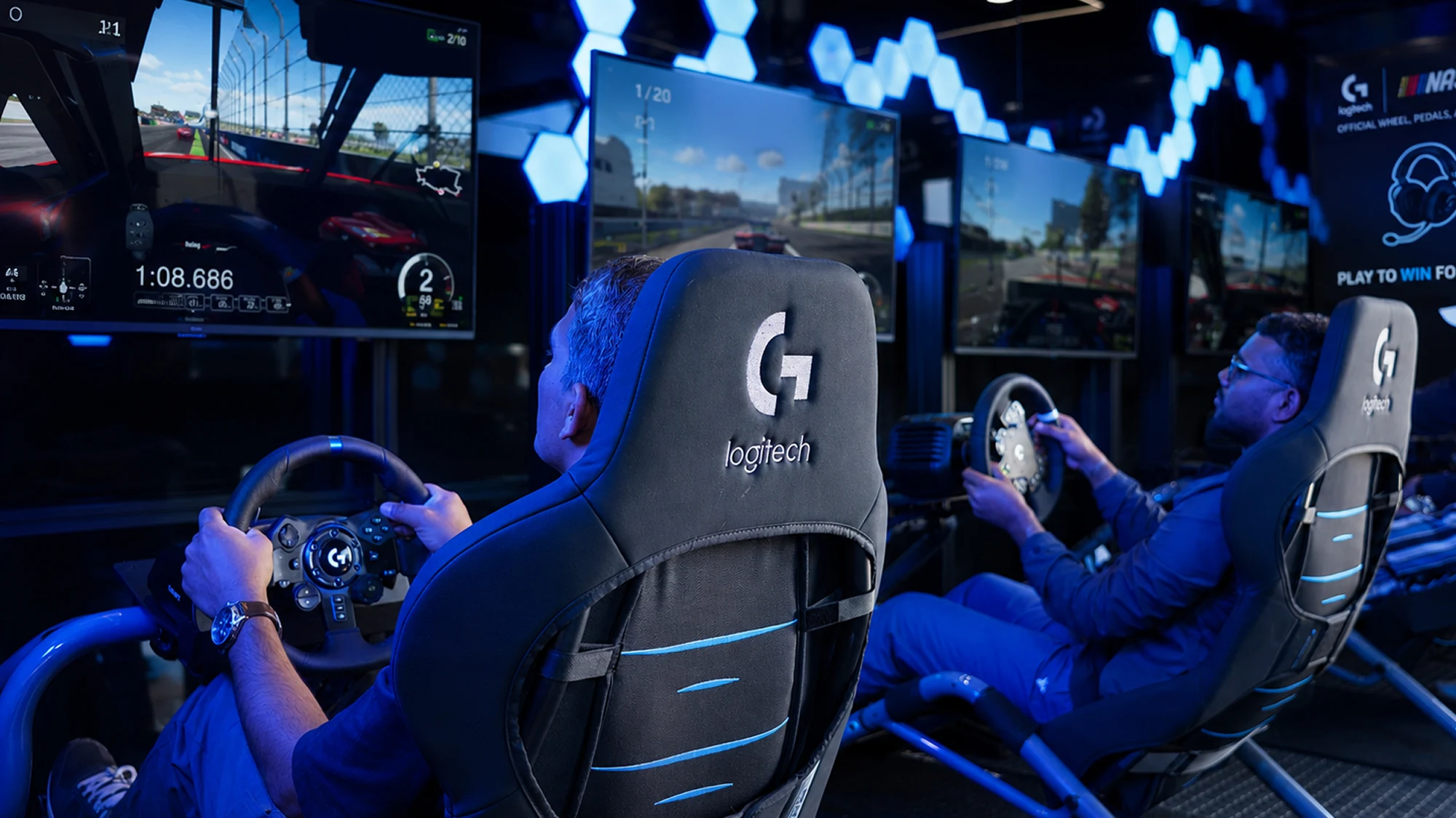
As a User Experience Designer for the next-generation Logitech racing wheel, my objective was to explore and evaluate experience solutions for tuning and fine-tuning the wheel at various stages of gameplay. Driven by insights gathered from user research and competitive studies, this project focused on delivering an advanced force feedback experience across both PC and console platforms.
Understanding the drivers
The study distinguished three approaches to tuning. Pro racers wanted complete control. Advanced drivers wanted guidance toward a good setup. Aspiring racers wanted the settings to stay out of their way. I used these differences to explore how much control the wheel should expose, and how.
“Give me complete control”.
“Guide me to success”.
“Make it invisible”.
The initial phase focused on conceptualizing and evaluating various interaction systems for wheel tuning. Four primary concepts were explored:
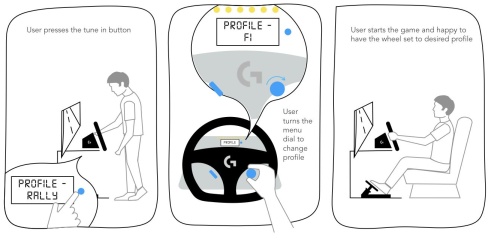
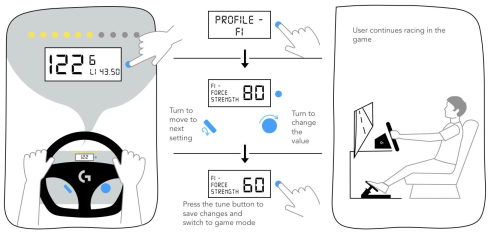
Concept 1: Tune in display
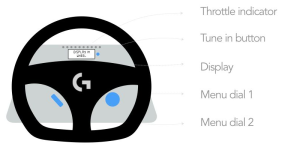
This concept integrates a display directly into the wheel to manage profiles and settings.
Hardware Elements: It utilizes a throttle indicator, a dedicated tune-in button, an embedded display, and two menu dials.
Interaction: Users can press the tune-in button and turn a menu dial to switch profiles before starting a race. During advanced tuning in game mode, the display shows data like speed, lap times (e.g., 43.50), and gear shifts. Users can adjust specific settings—such as reducing Force Strength from 80 to 60—by turning the dials and saving changes with the tune button.
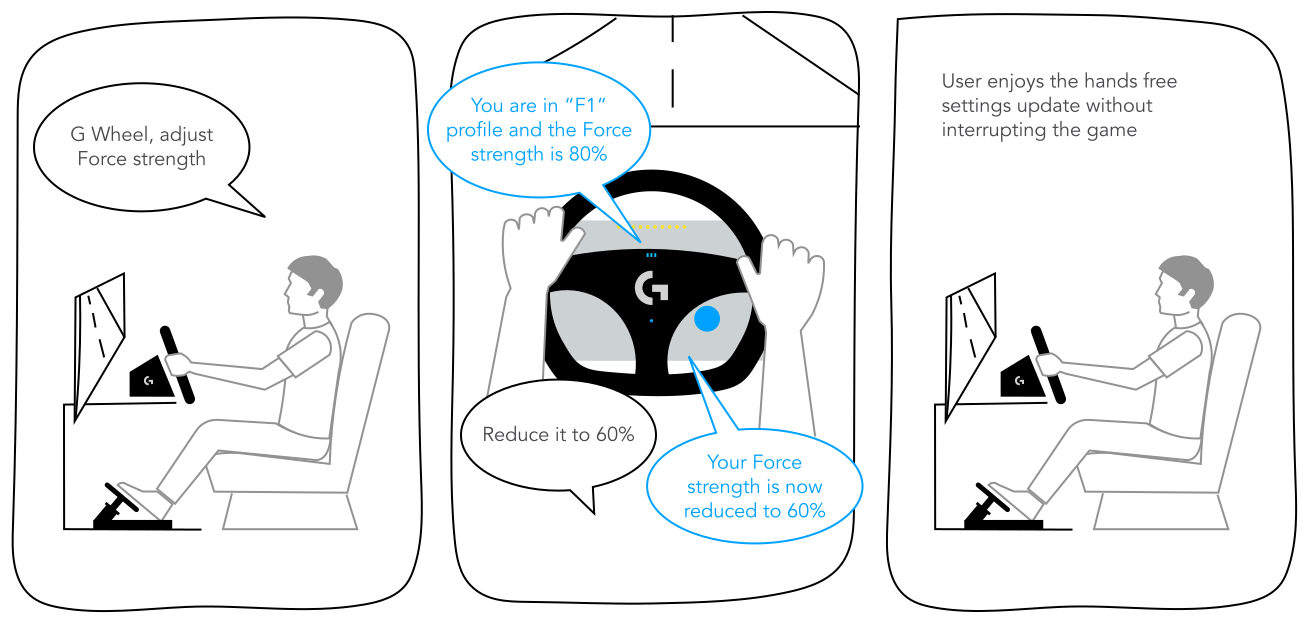
Concept 2: Voice input
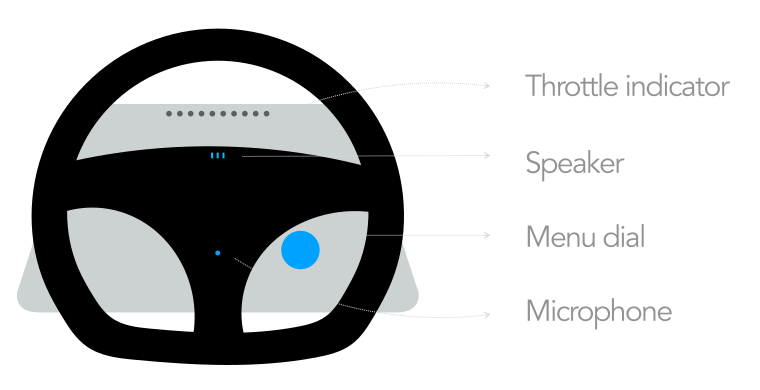
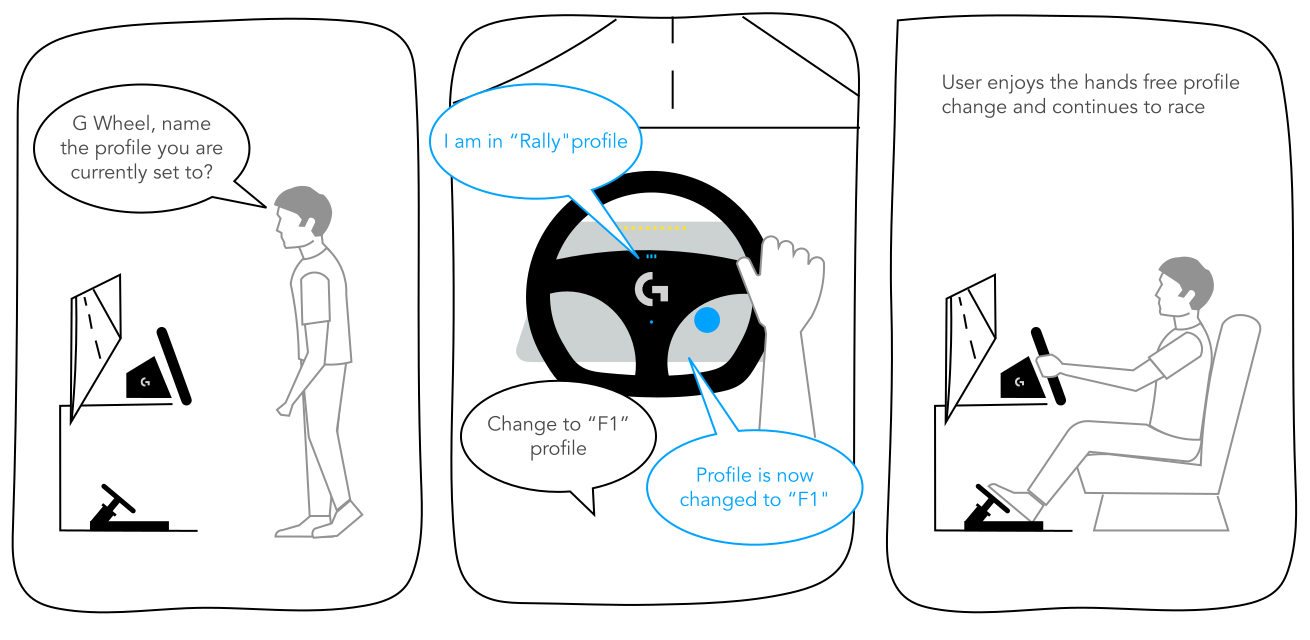
A voice-activated, hands-free tuning system.
Hardware Elements: Requires a microphone, speaker, menu dial, and throttle indicator integrated into the wheel.
Interaction: Users can ask the "Crew Chief" to identify the active profile (e.g., "Rally") and request a change (e.g., "Change to F1 profile"). Advanced tuning can be done without interrupting gameplay by giving commands like "reduce it to 60%" for Force Strength.
Concept 3: A tuning knob
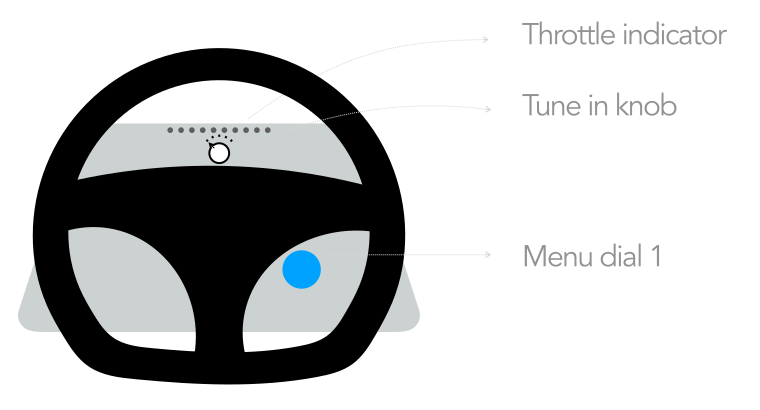
This concept relies on physical muscle memory for quick, tactile actions.
Hardware Elements: Features a tuning knob, a menu dial, and a throttle indicator.
Interaction: Users turn the tuning knob to select a specific setting—such as Profile, Force, Spring, Angle, Friction, Brake, Dual Clutch, Clutch Bite, or Clutch Pedal. Once selected, turning the menu dial increases or decreases the value linearly, accompanied by visual cues from the throttle LEDs.
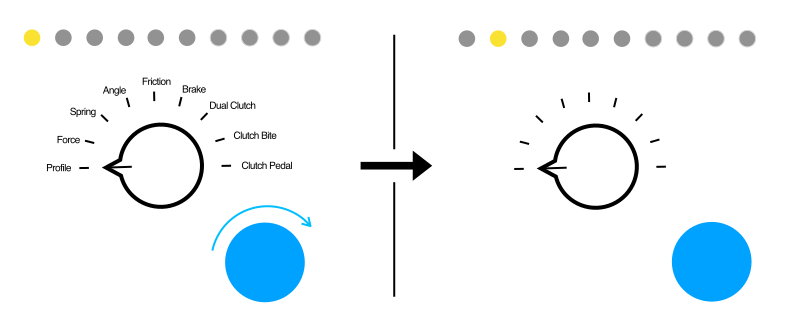
User sets the tuning knob to “Profile” and then turns the menu dial. This switches profiles in a linear sequence, with the selection shown by the throttle LEDs.
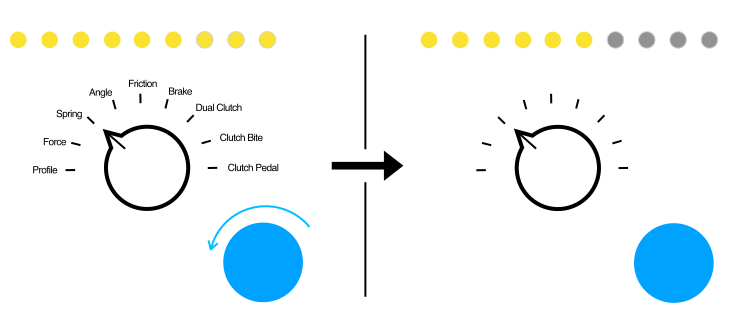
User sets the tuning knob to the desired setting—in this example, “Center spring”—then turns the menu dial to increase or decrease the value. The LEDs provide an additional visual cue.
Concept 4: Seamlessly connected
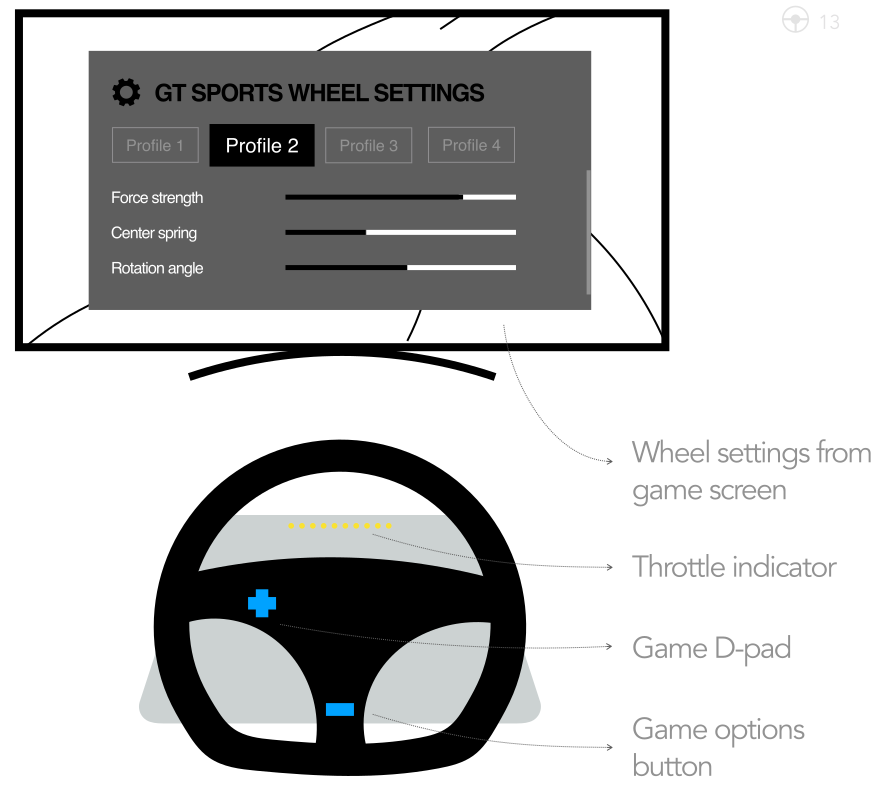
This approach shifts the tuning interface to the game screen itself.
Hardware Elements: Uses the game D-pad, game options button, and throttle indicator on the wheel.
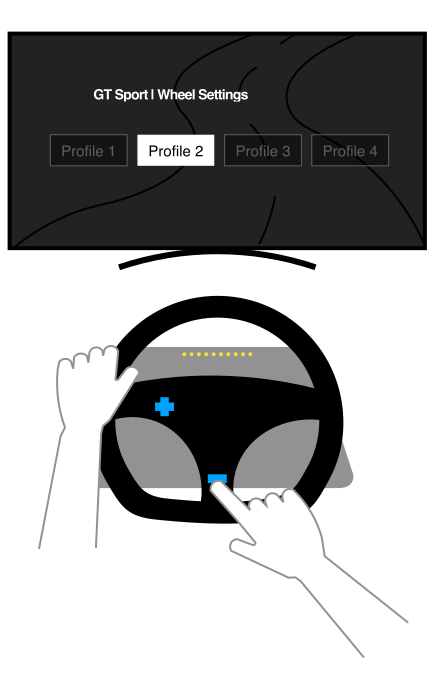
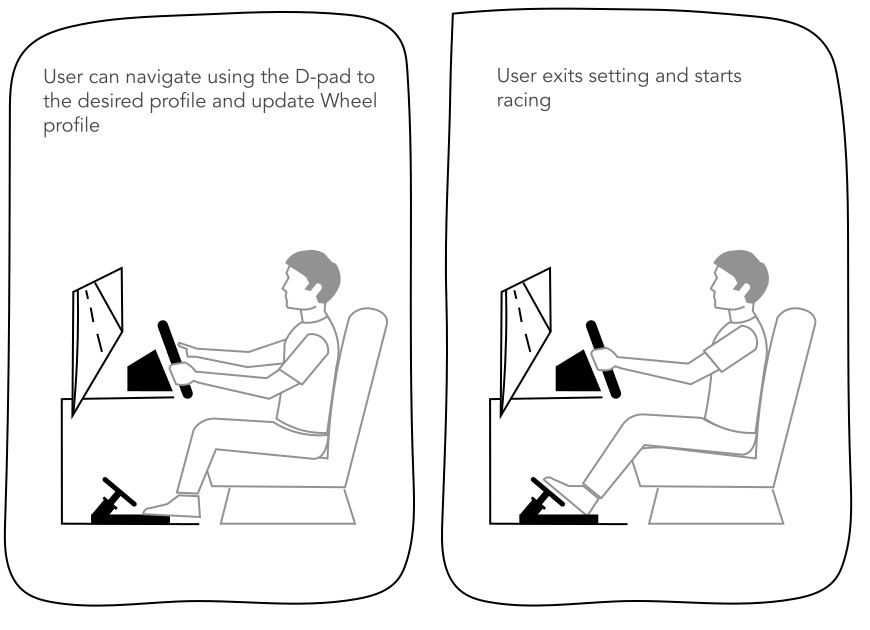
Interaction: Wheel settings (such as Force strength, Center spring, and Rotation angle) are displayed directly on the monitor or TV. Users navigate these on-screen menus using the wheel's D-pad.
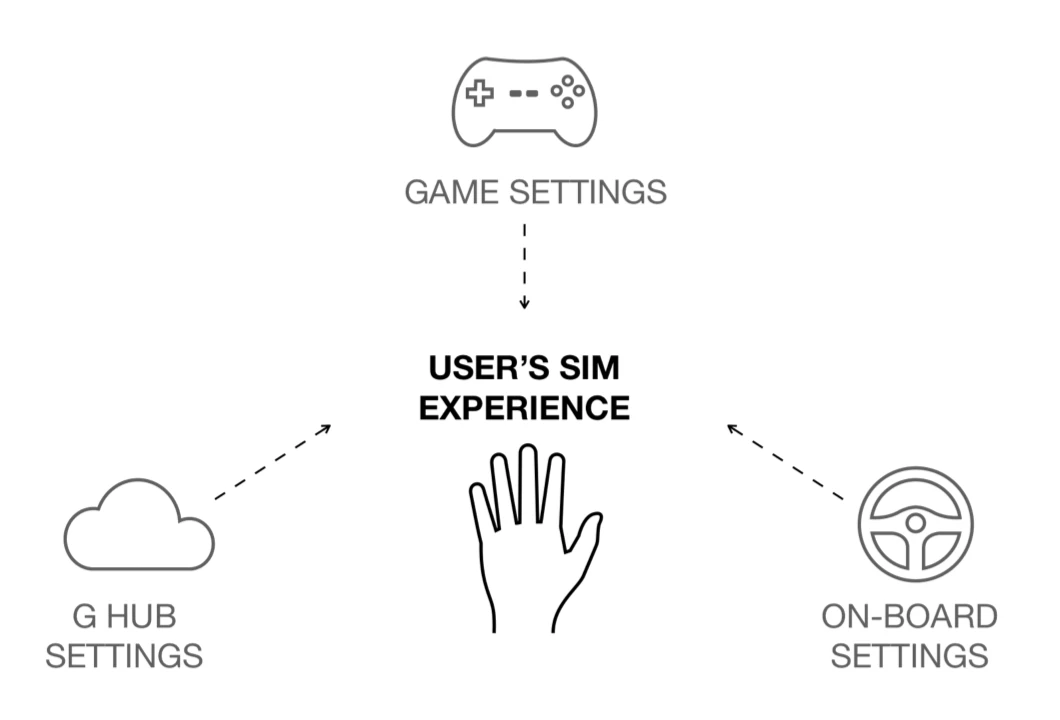
The wheel was only one place to change settings. I also mapped how onboard controls, G Hub and the game could work together. A dynamic profile concept switched between onboard and game modes according to context, keeping a backup on the wheel and avoiding several levels of navigation.
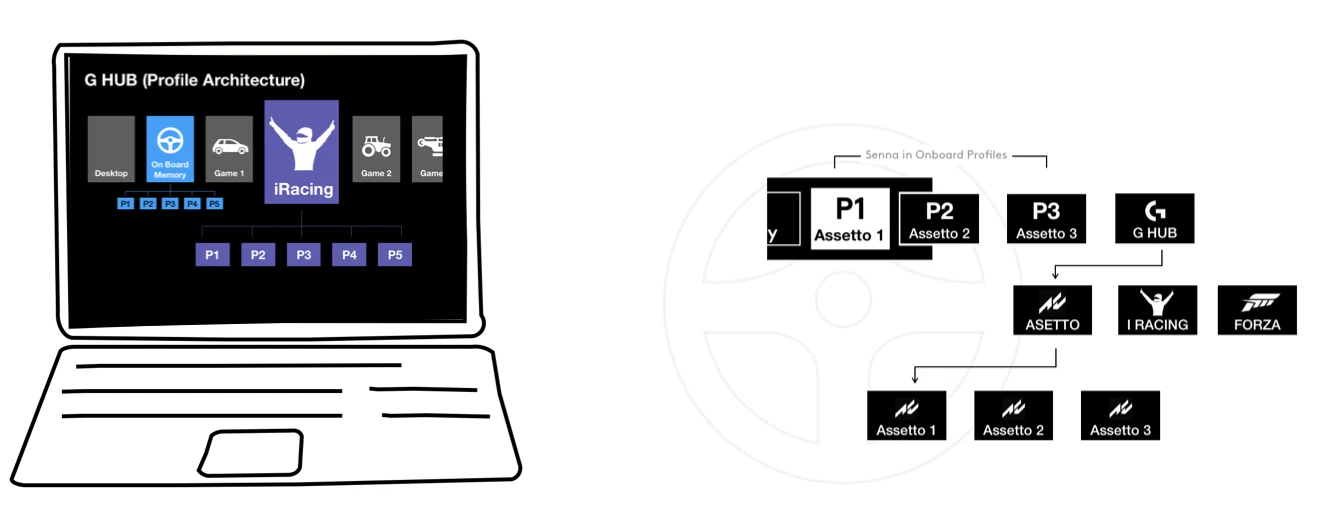
I compared the four concepts against discoverability, feedback, learning effort and technical dependencies. The display offered visible, immediate feedback, with limits around screen size and information already available in the game. I took that concept further through an experience map and low-fidelity prototypes.
Choosing a direction
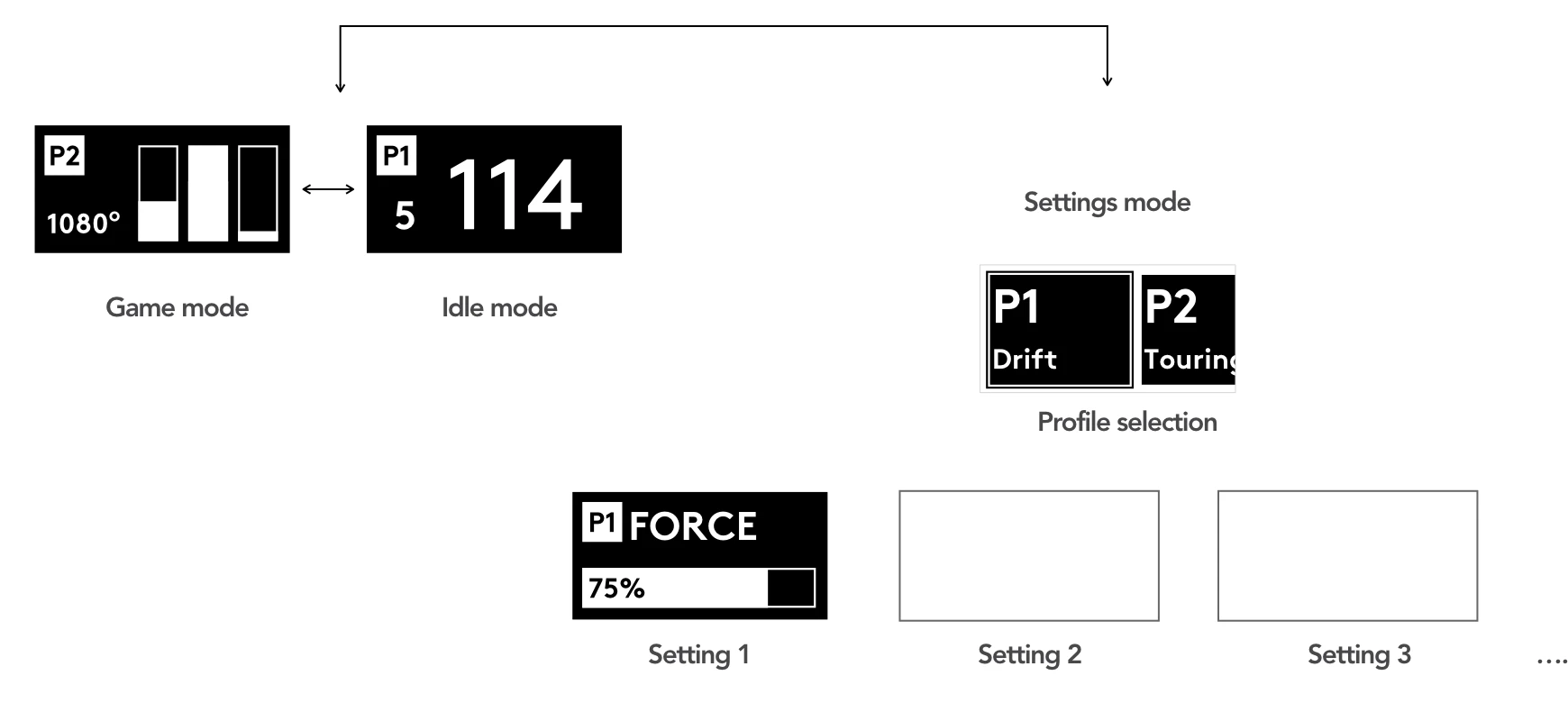
The screen elements were designed to dynamically support the user’s current mode:
Idle Mode UI: Displays the current profile (e.g., P2), live feedback for Clutch, Brake, and Accelerator, and the wheel rotation angle (e.g., 1080°).
Game Mode UI: Shows the active profile (e.g., P1), current gear from the game shifter (e.g., 5), and the speed of the car (e.g., 114).
Settings Mode UI: Accessed by pressing the tuning button. The first press shows a scrollable list of profiles (e.g., Drift, Touring) with the selected one highlighted. A second press enters advanced tuning, displaying the abbreviated setting name (e.g., P1 FORCE) and a glanceable progress bar with a numerical value (e.g., 75%).
Check the wheel and pedals, confirm the active profile, and see the wheel’s rotation angle.
Keep the profile visible and make speed and gear information easy to glance at.
Browse profiles and settings, with a clear indication of the current value and feedback when it changes.
Simulated navigation
Physical prototyping
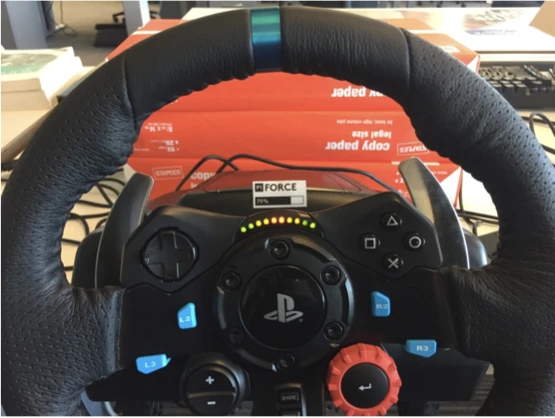
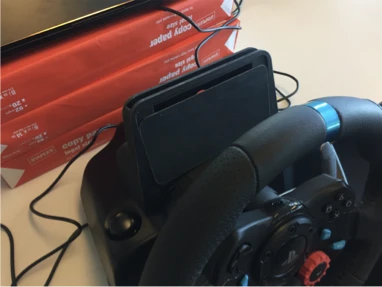
The concept was validated using a “Paper to Mobile” prototyping method, where a mobile phone displaying the digital UI was mounted directly onto a physical Logitech wheel base to simulate the in-game navigation and racing experience.
Ultimately, this project was about finding the right balance between quick hardware adjustments and deep software customization. While the on-wheel concepts allow users to intuitively tune the wheel at various stages in the game, the heavy lifting of the initial wheel setup still lives in the G HUB desktop app.
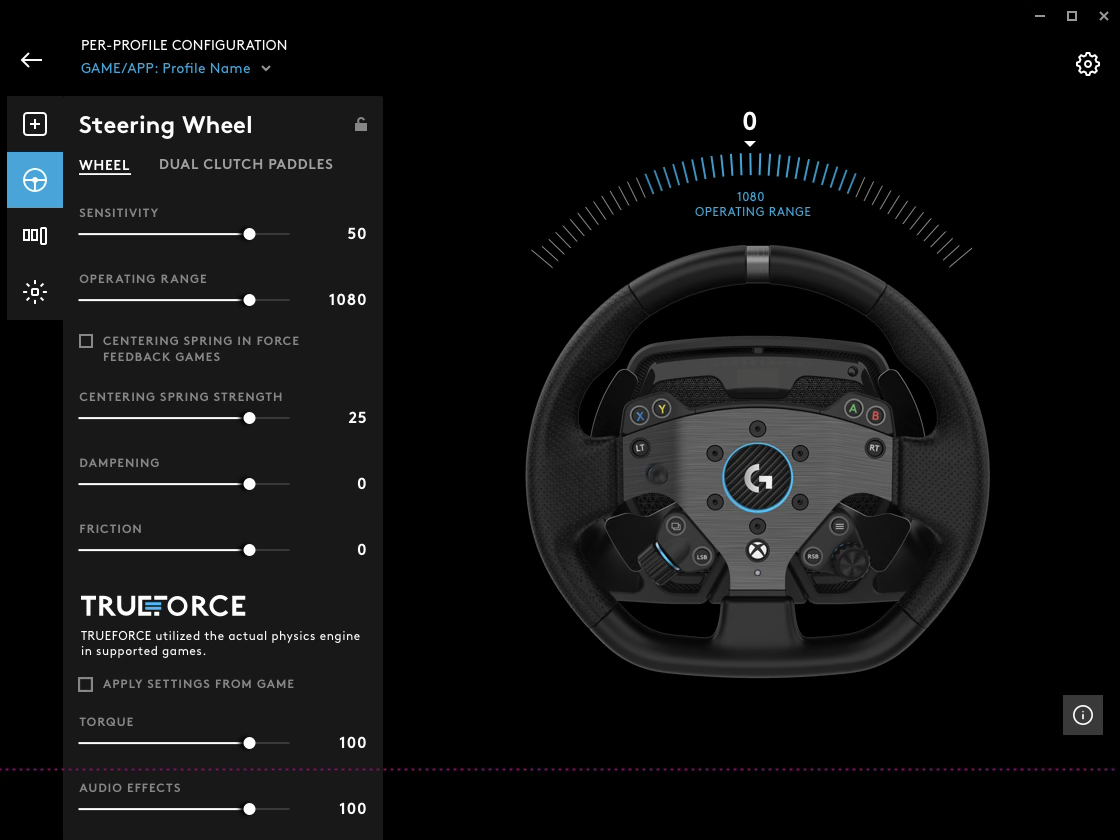
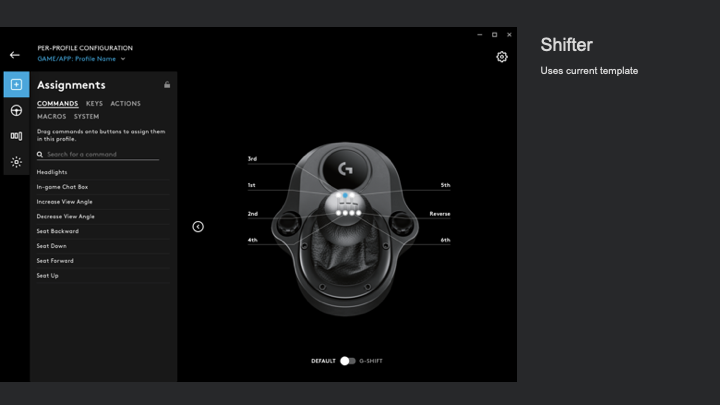
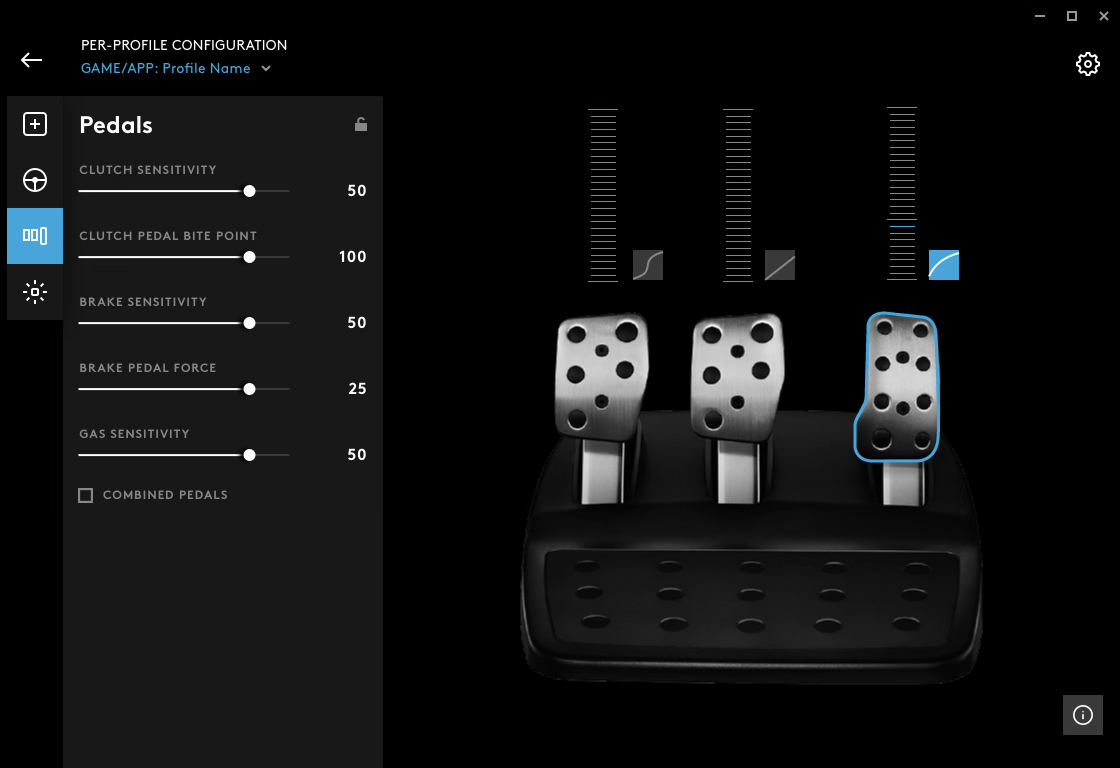
As a designer, I learned that we didn’t need to cram every single setting onto the physical wheel to create a successful product. The best experience comes from letting G HUB handle the granular details, while giving racers just enough on-the-fly interaction to stay focused on the track.
AI-powered B2B revenue orchestration
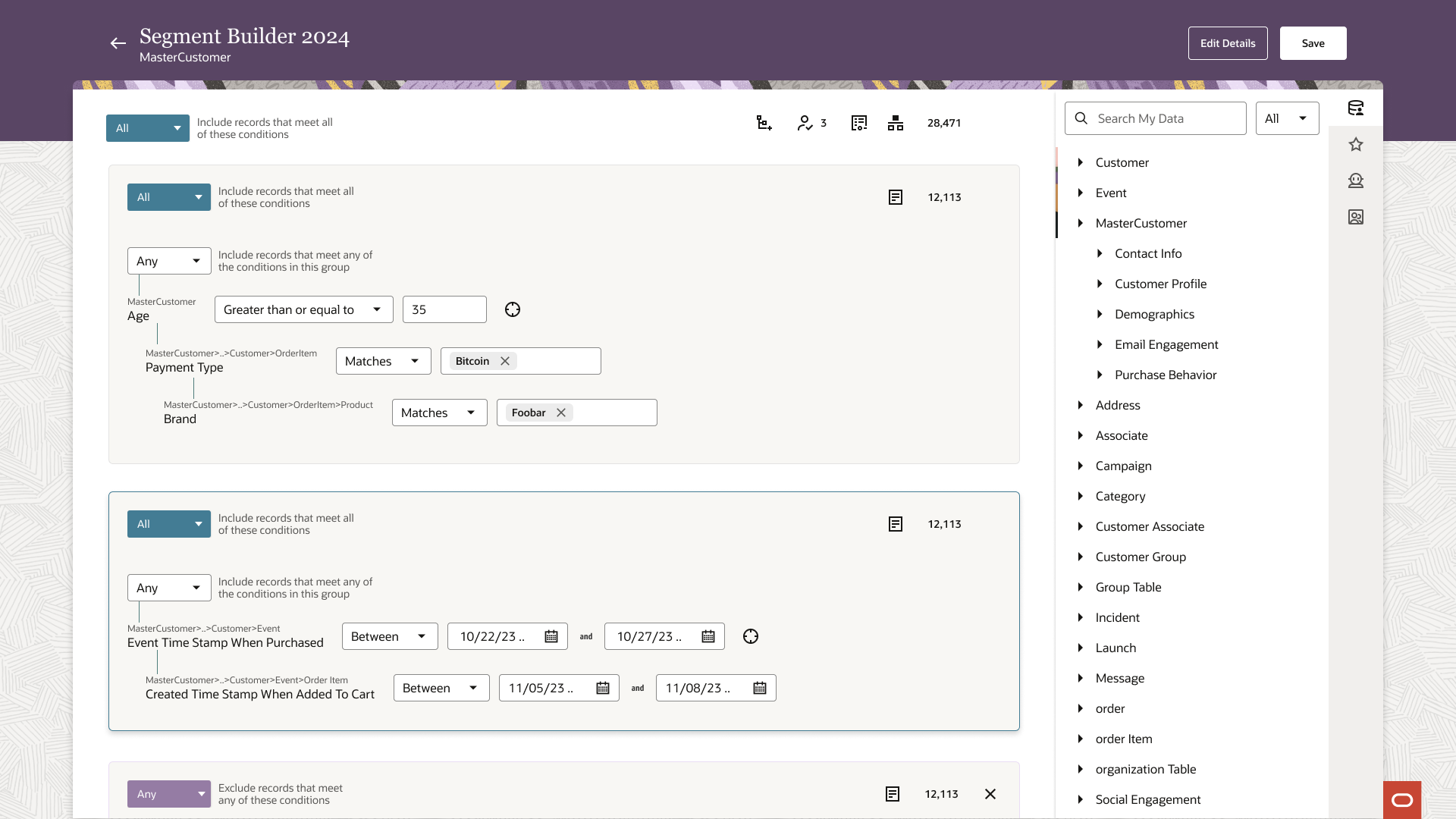
A holistic design journey spanning discovery research, scalable design systems, and Agentic AI experiences
A real time profile experience fueling hyper personalization.
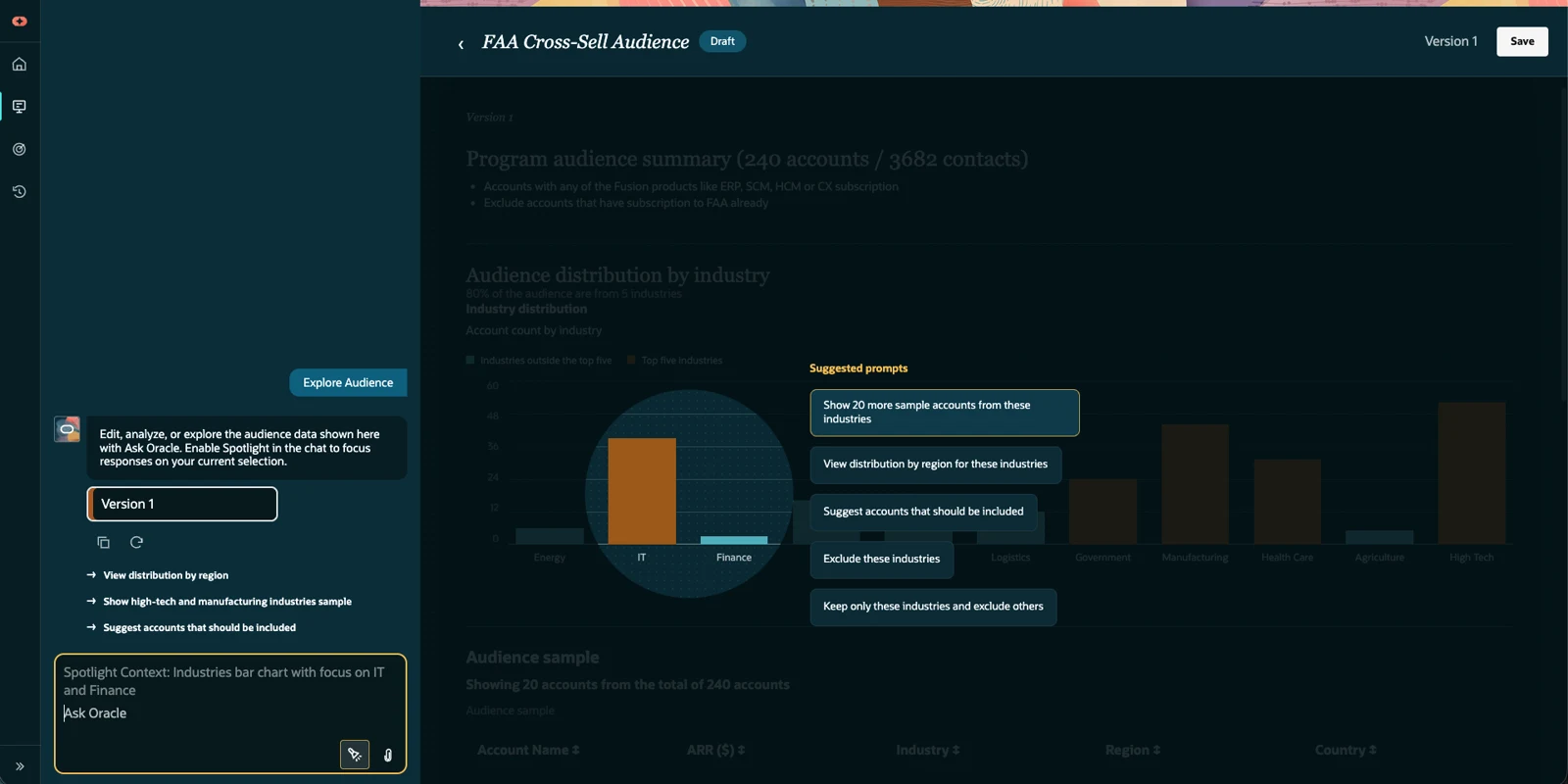
A design jam project to spark ideas supporting Agentic app experiences
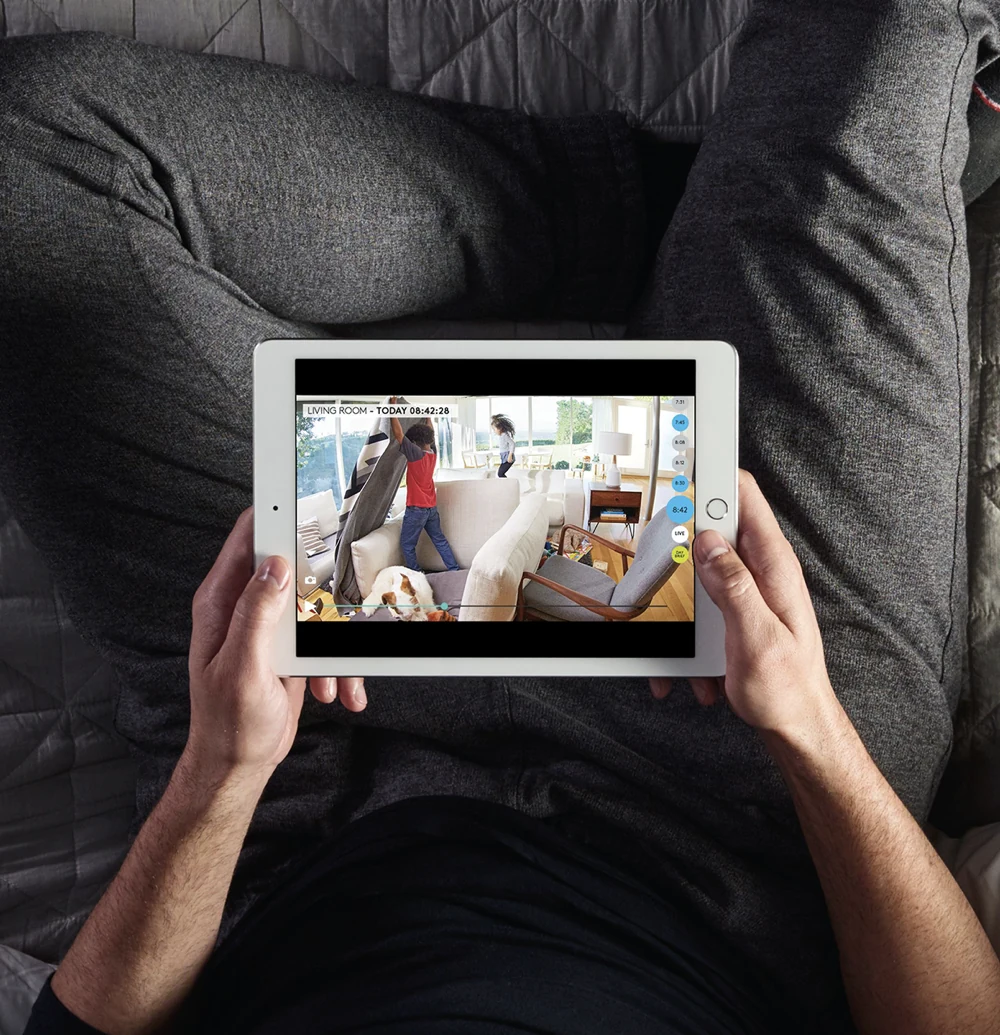
Home security, app experience and connected services

Designed over two decades ago, it still stands as the definitive mark of genuine handmade Indian craft.
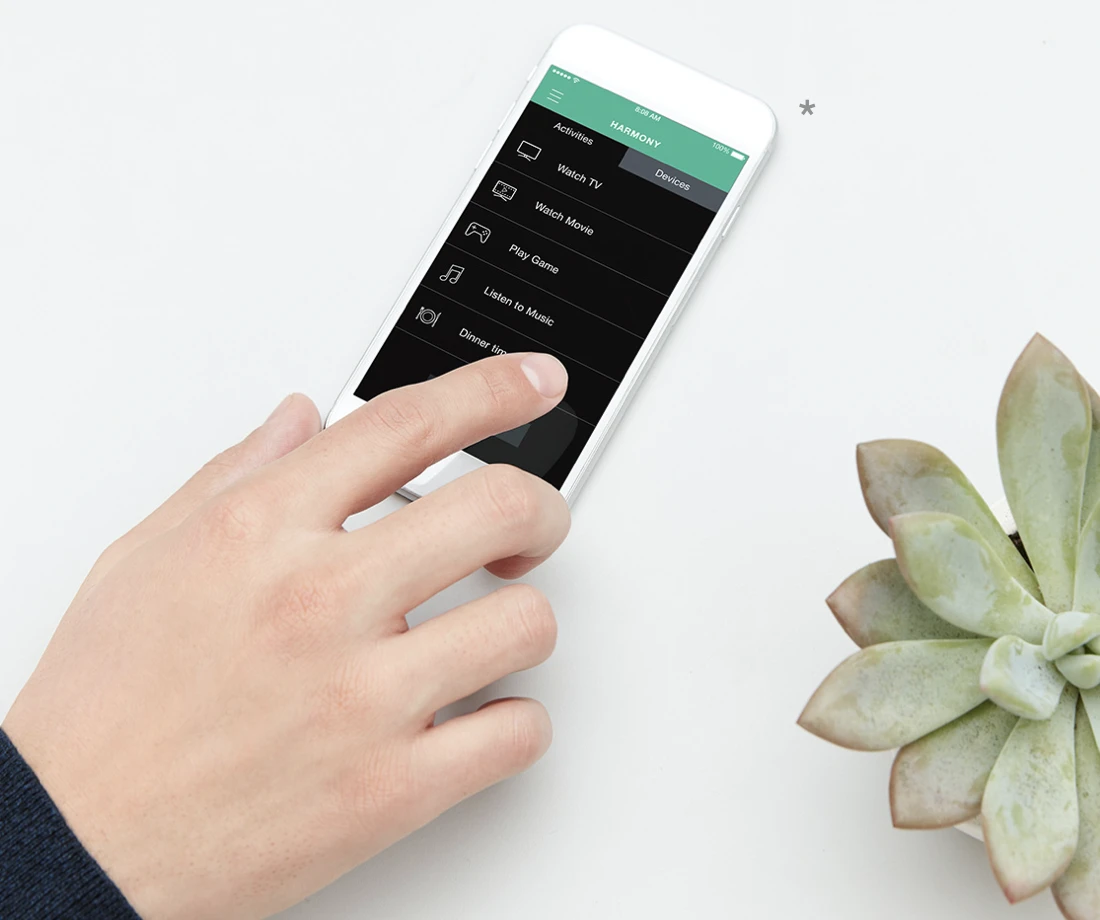
Entertainment and smart-home control